


We are interested in the settings in the User Configuration -> Policies -> Administrative Templates -> Desktop -> Desktop section. 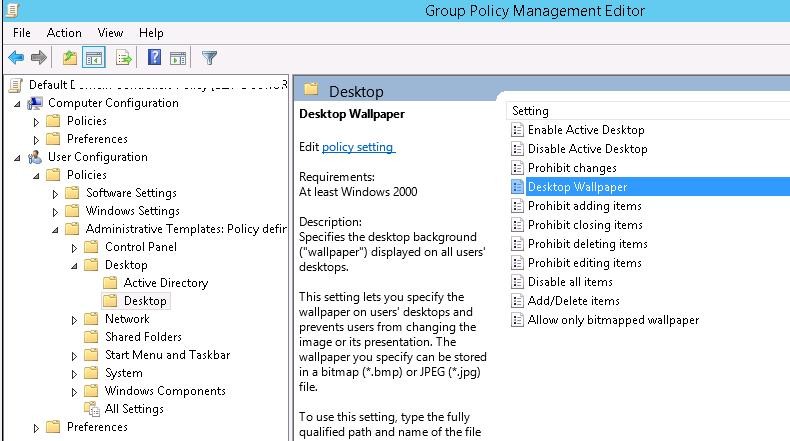
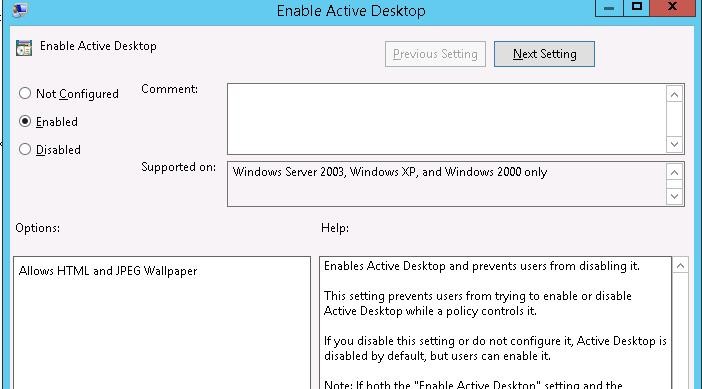
We need to enable the Enable Active Desktop policy.
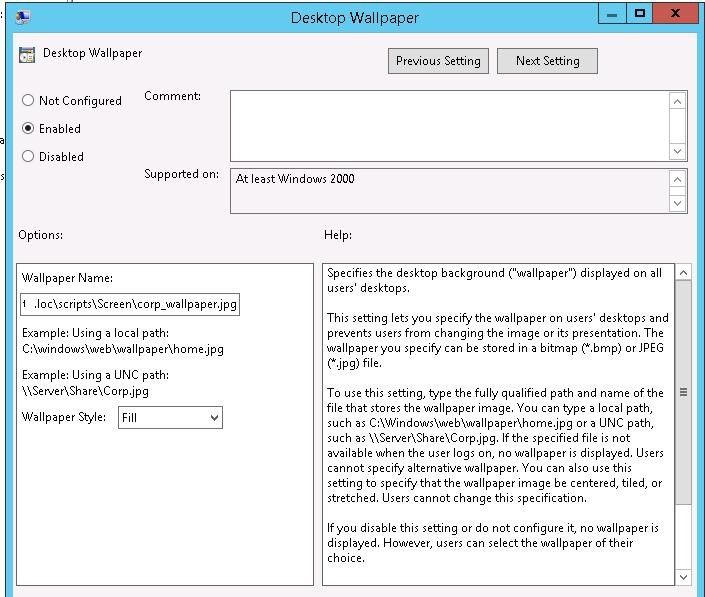
Then enable the Desktop Wallpaper policy. In the policy settings, specify the UNC path to the wallpaper file and select the Fill wallpaper style.
 To verify that the policy is working, log off and log back in. The specified wallpaper should appear on the user's desktop.
If you need to prevent users from changing the desktop wallpaper, enable the Prevent Changing Desktop Background policy in the User Configuration -> Administrative Templates -> Control Panel -> Personalization section.
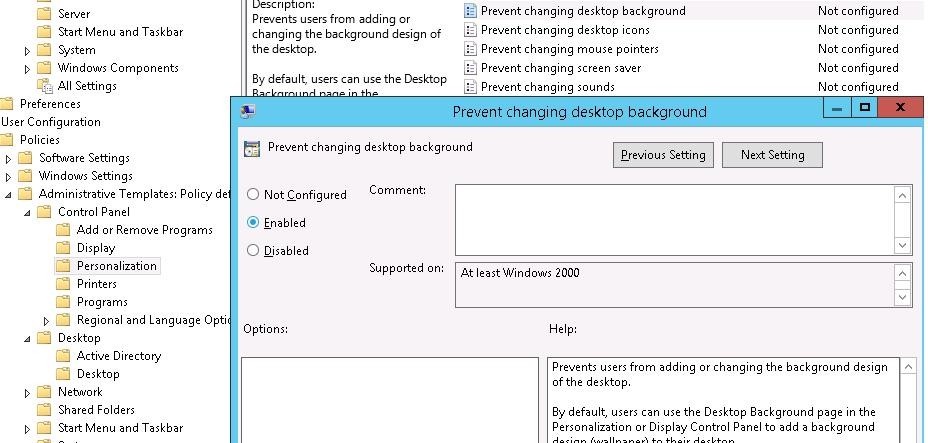
Tip. You can also set the desktop wallpaper file via the registry by changing the file path in the Wallpaper parameter under the HKCU\Software\Microsoft\Windows\CurrentVersion\Policies\System registry key. It is convenient to change the registry parameter value using the GPO – Group Policy Preferences extension, which allows you to implement scenarios for assigning different wallpapers to different user groups.
The restriction on changing the wallpaper can also be set via the registry:
[HKEY_CURRENT_USER\Software\Microsoft\Windows\CurrentVersion\Policies\ActiveDesktop]

"NoChangingWallPaper"=dword:00000001