



To install unsigned drivers on Windows Server 2012, you need to disable driver signature verification. In previous versions (up to 2008 R2 or similar), you could simply disable verification via Group Policy in gpedit.msc (User Configuration->Administrative Templates-> System->Driver Installation, Code Signing for Device Drivers setting). Now, the rigid security concept has been replaced by Microsoft's harsh arbitrariness. Fortunately, they have left a loophole.
Run Command Prompt with elevated privileges and execute the following commands in sequence:
Bcdedit.exe /set nointegritychecks ON
bcdedit.exe /set TESTSIGNING ON
After each command, a success message should appear:
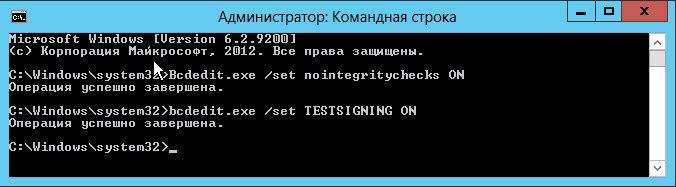
Instead of the first command, you can do:
bcdedit.exe /set loadoptions DDISABLE_INTEGRITY_CHECKS
To return to normal state:
Bcdedit.exe /set nointegritychecks OFF
bcdedit.exe /set TESTSIGNING OFF
or instead of the first:
bcdedit -set loadoptions ENABLE_INTEGRITY_CHECKS
After executing these commands, you need to restart the server.
Now, in the bottom right corner, there will be a message stating that Windows Server 2012 is running in test mode. You can remove the message, but it's pointless. It's immediately visible that everything worked and test mode is enabled.
Or
shutdown.exe /r /o /f /t 00