


To add a program (shortcut) to the startup in Windows, you used to be able to add it to the Start menu’s Startup folder. Starting with Windows 8, the Start menu was removed, and consequently, the ability to drag and drop shortcuts with the mouse was also removed. The menu is still available for both individual users and all users. However, locating this path in File Explorer is not very convenient, especially in localized versions. There are undoubtedly many ways to add a program to startup. I will focus on just a few.
Method 1: Quickly navigate to the startup directories using Shell commands.
For the current user:
Win+R → shell:Startup → Enter
For all users:
Win+R → shell:Common Startup → Enter
The required folder will open; drag the prepared shortcut into it or create a new one.
Note that Shell commands also work in previous versions of Windows, as well as in server versions.
Method 2: Create a task in Task Scheduler.
On the desktop, press the key combination
Win + I (i) → Control Panel → Administrative Tools → Task Scheduler → Create Task.
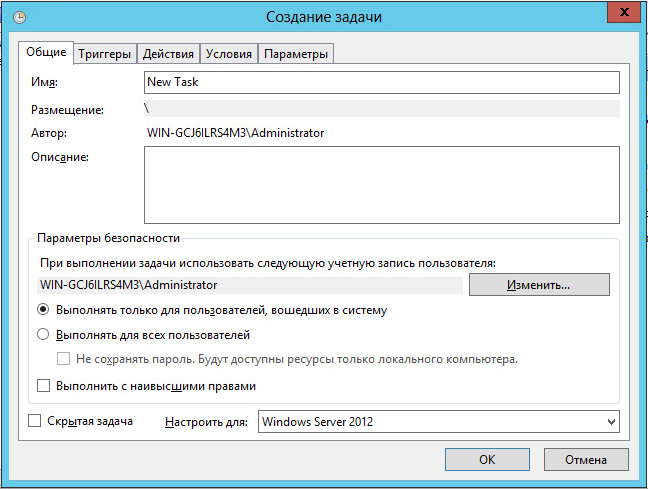
When creating a task, you can specify “Run with highest privileges” if the task needs to be executed as an Administrator.
Next, go to the Triggers tab and select the “At log on” action.
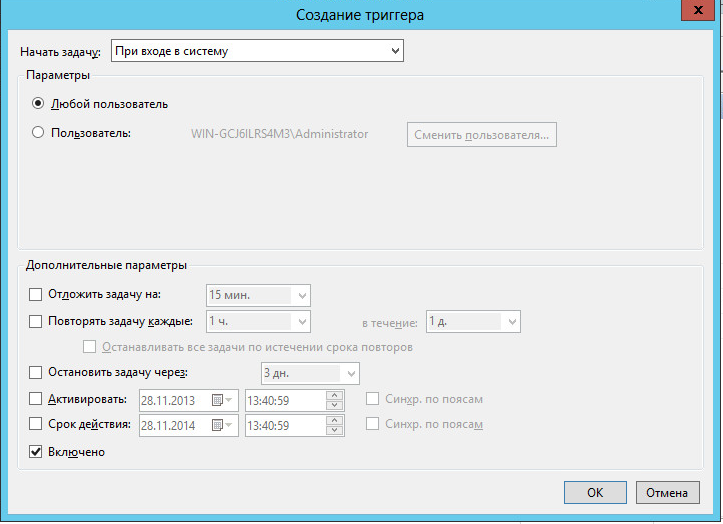
In the settings, you can specify whether the trigger should activate when any user logs on or for a specific user.
The second option allows you to configure launch conditions and various parameters, and is also available on Windows 7 and server platforms.
In most cases, the first method is sufficient.
Additionally, you can use the Autostarter program, which not only allows you to configure program startup but also set the launch order, enable/disable tasks, and more.
P.S. Microsoft is heavily promoting keyboard shortcuts. As you can see, this is particularly relevant in newer versions of Windows. Especially for tablets, where there is no keyboard =)